Why is Mic Drop showing a mute error?
Browse help topics
If you’re seeing an error icon in the menu bar, it means that Mic Drop can’t mute the default audio device on your Mac. This happens if you’re using an incompatible audio device or have disabled your selected device in Mic Drop.


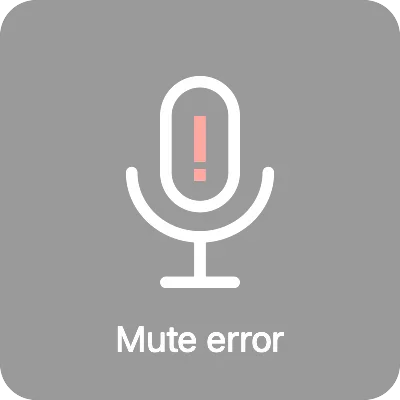
If Mic Drop can’t mute your default input device, it will unmute all audio. The error icon will remain in the menu bar until Mic Drop can mute your default input. If you have visual notifications enabled, you’ll also see a “Mute error” notification:
If you’ve turned on Mic Drop’s Dock icon, it shows an exclamation mark. Mic Check also shows a warning icon next to your microphone’s name.
How do I fix it? #
- Turn the device back on. If you’ve disabled your microphone in Mic Drop’s Settings > Devices, turn it back on there. Ignoring devices
- Check whether macOS can mute your device. Some microphones and audio interfaces don’t support system-level muting. Incompatible devices
- Try Loopback. Many people with incompatible devices create a virtual audio device with Loopback, which Mic Drop can mute. How to use Loopback with Mic Drop
Last updated
More about Device warnings →Still have questions? We’re here to help! Contact us